> ## Documentation Index
> Fetch the complete documentation index at: https://docs.stratumn.com/llms.txt
> Use this file to discover all available pages before exploring further.
# Modify a row
In order to modify a row in a Database, you first need to **double click** on the cell of the row you want to modify. Then, **two behaviors** are possible.
## Classic cell
If the cell is containing **normal values** like numbers or characters you can **directly modify** the value of the cell by double clicking on it and start typing.
 Then, you can either press **Enter** to save the modification or **Escape** to cancel it.
Clicking anywhere outside the cell but inside the grid (e.g. clicking on
another cell) will also save the modification.
If you are not sure if your modification has been saved, you can simply
refresh the page.
### Regex validation
Sometimes, for security reasons, you may want to **validate** the value of a cell before saving it by using a regular expression.
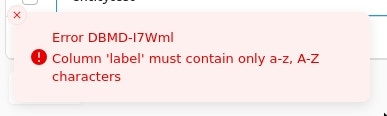
These are defined by the client and configured by the Stratumn team and if you try to save a cell modification with an **invalid value**, the modification will be **rolled back** and a custom message will be displayed.
Then, you can either press **Enter** to save the modification or **Escape** to cancel it.
Clicking anywhere outside the cell but inside the grid (e.g. clicking on
another cell) will also save the modification.
If you are not sure if your modification has been saved, you can simply
refresh the page.
### Regex validation
Sometimes, for security reasons, you may want to **validate** the value of a cell before saving it by using a regular expression.
These are defined by the client and configured by the Stratumn team and if you try to save a cell modification with an **invalid value**, the modification will be **rolled back** and a custom message will be displayed.
 ## Reference cell
If the cell is a **reference cell**, double-clicking on it will open a **multi-select menu**.
## Reference cell
If the cell is a **reference cell**, double-clicking on it will open a **multi-select menu**.
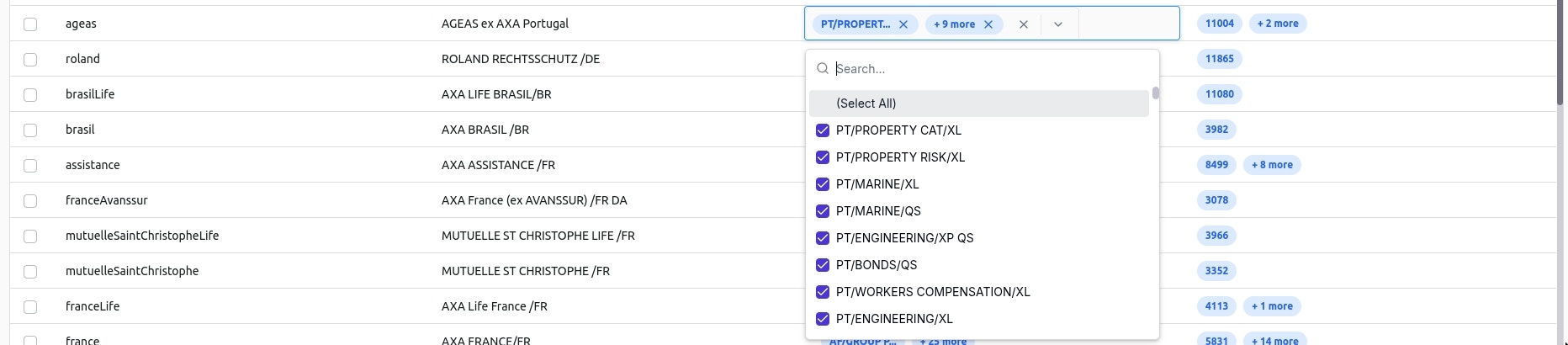 Inside the multi-select menu, **first** are displayed the rows that are **already selected**.
Then, you can select any additional row by **clicking on it**, it's checkbox will be **checked**.
Finally, in order to **save the modification**, you have 2 options:
* Directly click **outside the cell** but inside the grid (e.g. another cell), this will instantly **save the modification**.
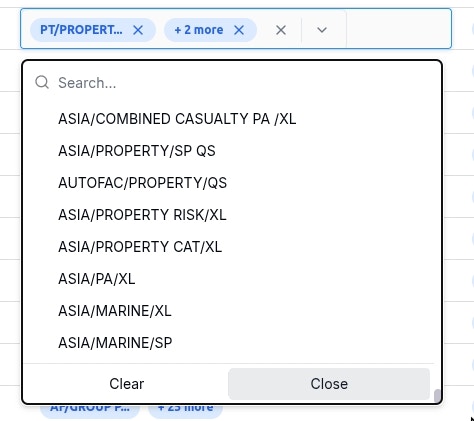
* First, press **Escape** or click on the **Close** button at the bottom of the multi-select menu to close the menu with your modifications **temporarily saved**.
* Then, press **Enter** or click **outside the cell** but inside the grid to **definitively save the modification**.
Inside the multi-select menu, **first** are displayed the rows that are **already selected**.
Then, you can select any additional row by **clicking on it**, it's checkbox will be **checked**.
Finally, in order to **save the modification**, you have 2 options:
* Directly click **outside the cell** but inside the grid (e.g. another cell), this will instantly **save the modification**.
* First, press **Escape** or click on the **Close** button at the bottom of the multi-select menu to close the menu with your modifications **temporarily saved**.
* Then, press **Enter** or click **outside the cell** but inside the grid to **definitively save the modification**.
 Same as for the classic cell, if you are not sure if your modification has
been saved, you can refresh the page.
Same as for the classic cell, if you are not sure if your modification has
been saved, you can refresh the page.