> ## Documentation Index
> Fetch the complete documentation index at: https://docs.stratumn.com/llms.txt
> Use this file to discover all available pages before exploring further.
# Analytics page on Studio Settings
## Workflow settings Analytics Page
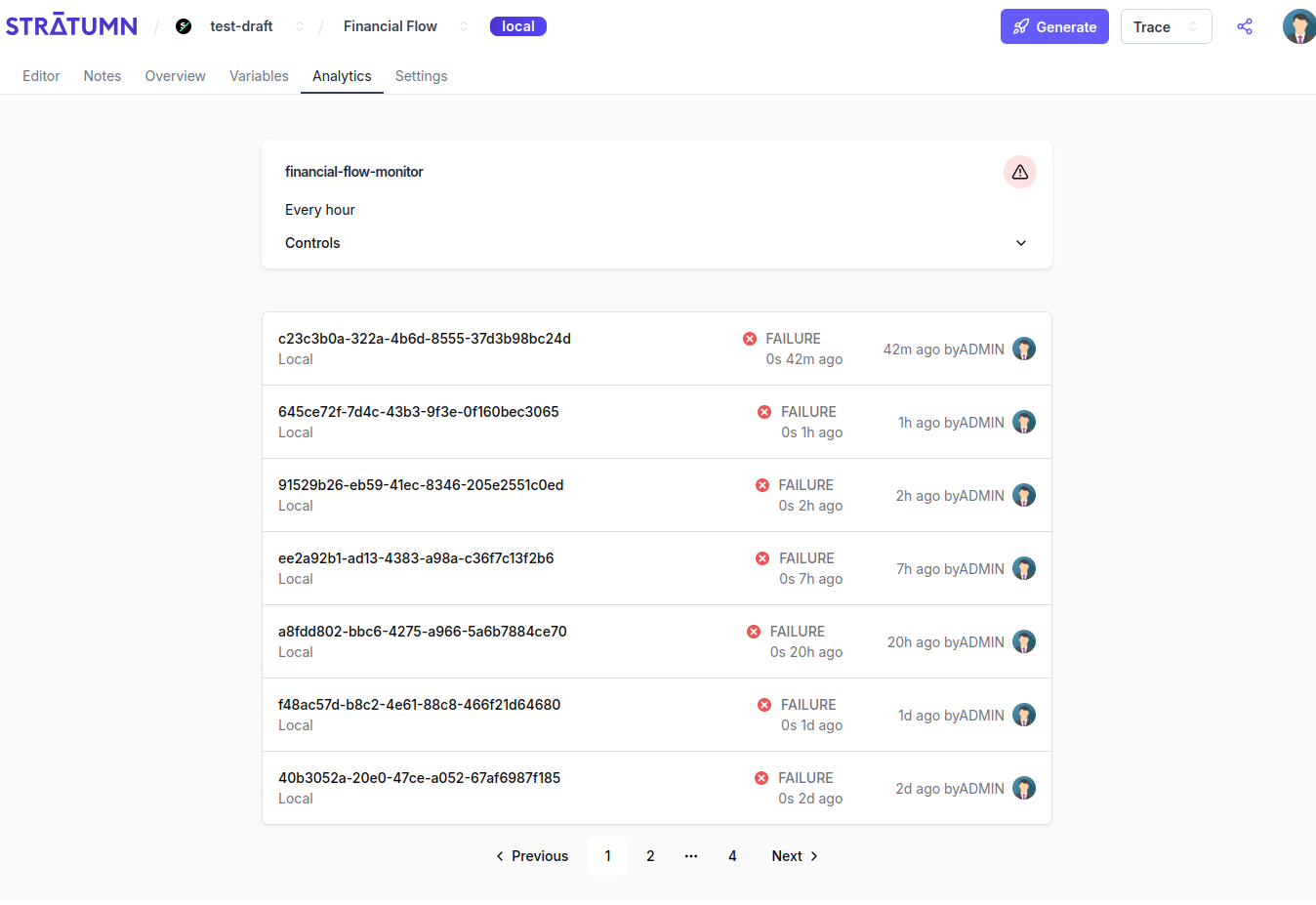 Go to a process, then in the workflow page.
You can see in the menu "Analytics".
Go to this page and you will find the ETL page.
It has two parts :
* The ETL card, with the global info about the ETL
* A paginated list of ETL instances, the pods, in the most recent one being launched order.
ETL is a job so it has a `id`, `name`, `status`, a `cron_expression` if the ETL is scheduled to run periodically (see [below](#cron-expression) ), and all others properties of a Job.
## Controls
Go to a process, then in the workflow page.
You can see in the menu "Analytics".
Go to this page and you will find the ETL page.
It has two parts :
* The ETL card, with the global info about the ETL
* A paginated list of ETL instances, the pods, in the most recent one being launched order.
ETL is a job so it has a `id`, `name`, `status`, a `cron_expression` if the ETL is scheduled to run periodically (see [below](#cron-expression) ), and all others properties of a Job.
## Controls
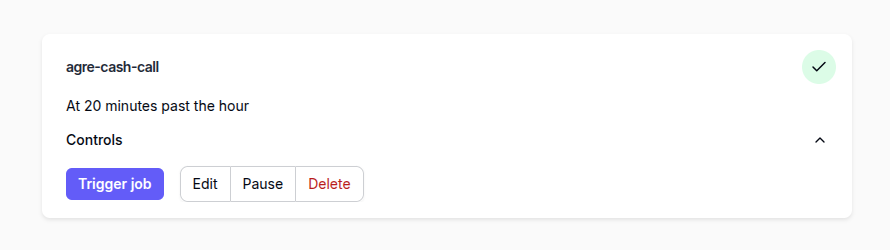 Click on the ETL controls accordion, you will see the card revealing 4 buttons :
* Trigger : to trigger the etl instantly (It will create a Pod from this etl)
* Edit: to edit the etl details (see [Edit](#edit) )
* Pause: Clicking on it will pause the ETL, which will set its status to `RECEIVED` and put the cronjob on hold. The ETL won't run until the pause is active. Clicking again will resume the ETL and starts the cronjob, and sets its status to `IN_PROGRESS`
* Delete: will not delete the ETL job in the database but sets its status to `COMPLETED`, in which case Studio won't show them on the page anymore.
## Edit
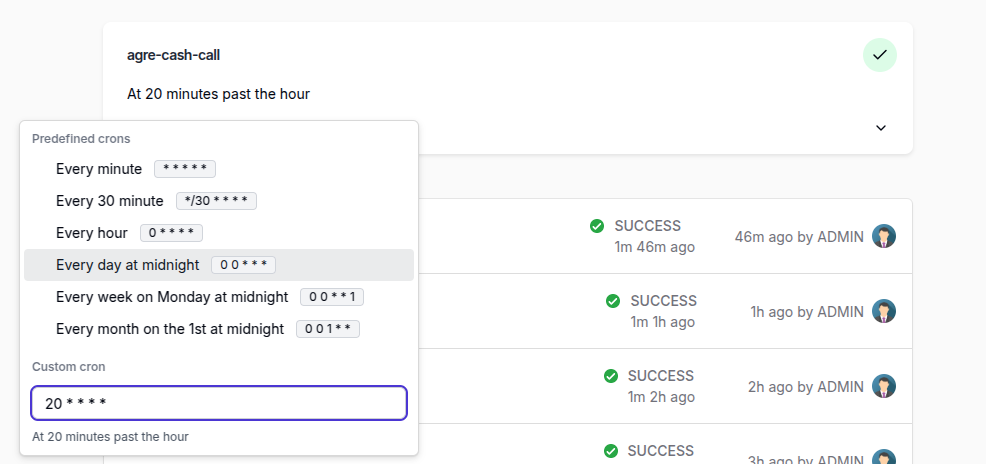
On the ETL card, You can edit he name and cron expression directly by clicking on it :
Click on the ETL controls accordion, you will see the card revealing 4 buttons :
* Trigger : to trigger the etl instantly (It will create a Pod from this etl)
* Edit: to edit the etl details (see [Edit](#edit) )
* Pause: Clicking on it will pause the ETL, which will set its status to `RECEIVED` and put the cronjob on hold. The ETL won't run until the pause is active. Clicking again will resume the ETL and starts the cronjob, and sets its status to `IN_PROGRESS`
* Delete: will not delete the ETL job in the database but sets its status to `COMPLETED`, in which case Studio won't show them on the page anymore.
## Edit
On the ETL card, You can edit he name and cron expression directly by clicking on it :
 You can edit the rest of the ETL by opening the controls and click on `Edit`. A modal opens :
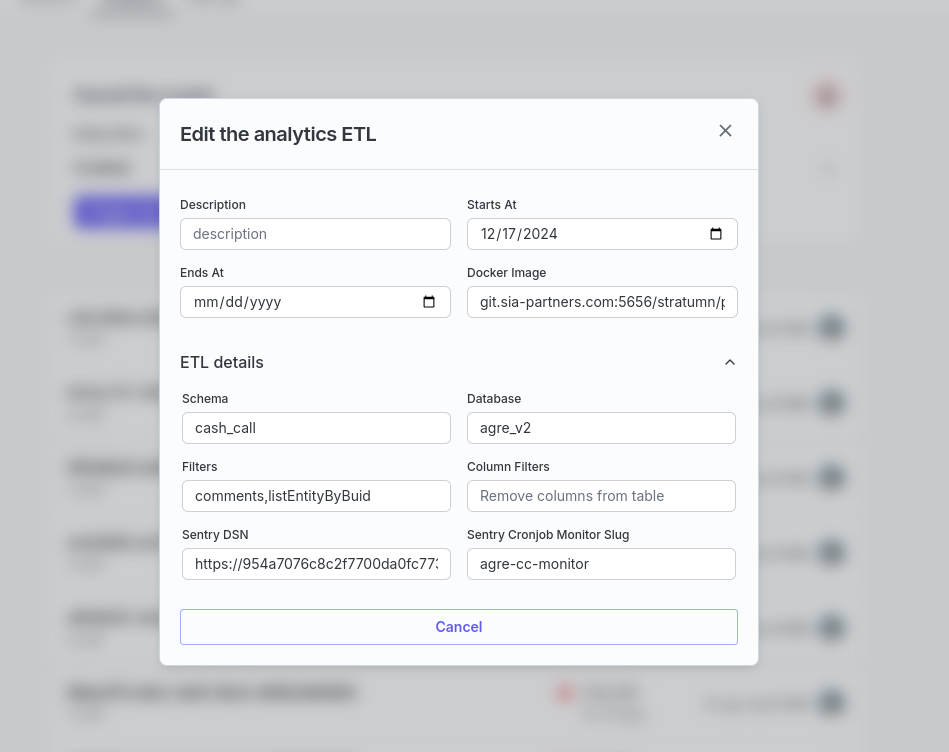 Please refer to [ETL DTO](/studio/analytics/analytics-dto#dto) to check all the different properties. Beware, some properties will change the etl management (such as schema, database, and so on.)
## ETL pods and logs
Please refer to [ETL DTO](/studio/analytics/analytics-dto#dto) to check all the different properties. Beware, some properties will change the etl management (such as schema, database, and so on.)
## ETL pods and logs
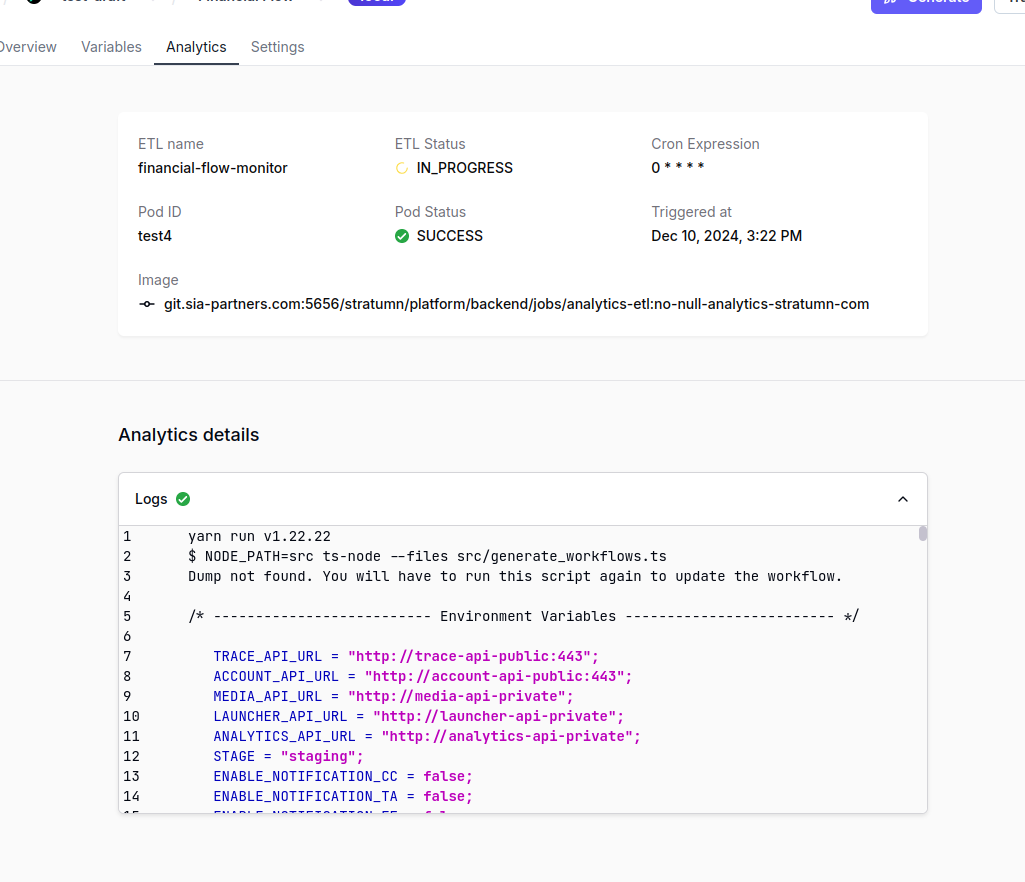 When you go to an etl pod details, you will find a page with the summary of the etl job (name, status, cron\_expression) and the informations about the etl pod : the pod status, when it has been triggered, the docker image used, and the logs from the kubernetes pod job.
To see the logs in Studio, you will need to enable `store_execution_logs` to
`true` inside `metadata`. Please see this
[here](/studio/analytics/analytics-dto#param-metadata)
## Cron expression
Cron expressions are a powerful way to schedule tasks in Unix-based systems and various job schedulers. They consist of a string with five to seven fields that define a time-based schedule.
**Cron Expression Format** A standard cron expression consists of five fields, while extended versions may have six or seven:
```
* * * * * Command to execute
| | | | |
| | | | +---- Day of the week (0 - 7) (Sunday = 0 or 7)
| | | +--------- Month (1 - 12)
| | +-------------- Day of the month (1 - 31)
| +------------------- Hour (0 - 23)
+------------------------ Minute (0 - 59)
```
**Examples of Cron Expressions**
1. `0 0 * * *` - Runs daily at midnight.
2. `0 */2 * * *` - Runs every 2 hours.
3. `*/30 * * * *` - Runs every 30 minute.
4. `0 0 * * 1` - Runs every week on Monday at midnight.
5. `0 0 1 * *` - Runs every month on the 1st at midnight.
When you go to an etl pod details, you will find a page with the summary of the etl job (name, status, cron\_expression) and the informations about the etl pod : the pod status, when it has been triggered, the docker image used, and the logs from the kubernetes pod job.
To see the logs in Studio, you will need to enable `store_execution_logs` to
`true` inside `metadata`. Please see this
[here](/studio/analytics/analytics-dto#param-metadata)
## Cron expression
Cron expressions are a powerful way to schedule tasks in Unix-based systems and various job schedulers. They consist of a string with five to seven fields that define a time-based schedule.
**Cron Expression Format** A standard cron expression consists of five fields, while extended versions may have six or seven:
```
* * * * * Command to execute
| | | | |
| | | | +---- Day of the week (0 - 7) (Sunday = 0 or 7)
| | | +--------- Month (1 - 12)
| | +-------------- Day of the month (1 - 31)
| +------------------- Hour (0 - 23)
+------------------------ Minute (0 - 59)
```
**Examples of Cron Expressions**
1. `0 0 * * *` - Runs daily at midnight.
2. `0 */2 * * *` - Runs every 2 hours.
3. `*/30 * * * *` - Runs every 30 minute.
4. `0 0 * * 1` - Runs every week on Monday at midnight.
5. `0 0 1 * *` - Runs every month on the 1st at midnight.